Poker App: How to Sign In and Create an Account in the WPT HOME APP
This guide covers the entry options in the WPTHOME APP, username or email registration, and checking account links. For guest accounts, the WPTHOME FAQ recommends completing at least one link as soon as possible to protect the account and preserve its data over the long term.
Before Signing In to the Poker App
If you choose email registration, have access to your inbox to receive the code. For either registration method, the password must be 8 to 16 characters long and contain only letters and numbers.
The English names below match the interface labels.
Step by Step: Sign In, Register, and Check Account Links
1. Choose How to Sign In
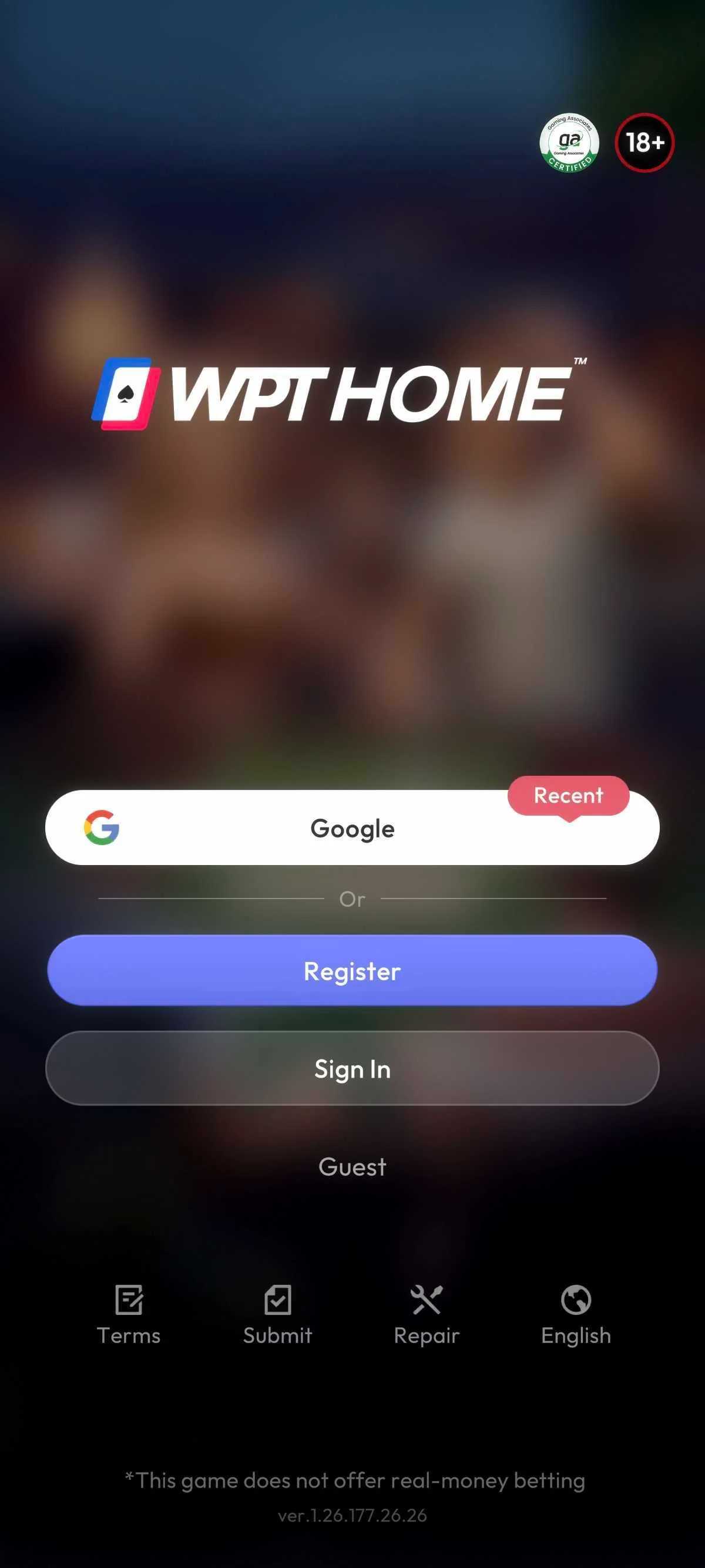
On the opening screen, choose quick sign-in with Google, registration, account sign-in, or guest access. If you already have an account, use the method you normally use; if you want to create one, open registration.
The Sign In/Register panel contains the registration options and external services, which appear at the bottom. The Recent label indicates a method used recently.
2. Choose One of the Two Registration Methods
Option 1: Username
Enter your username, password, and password confirmation. If you need to check the characters, use the option to show or hide the password. When the details are complete and the button is available, tap Confirm to submit the registration.
Option 2: Email
- Enter the email address.
- Tap Request to request the verification code.
- Enter the code you receive in the corresponding field.
- Enter the password.
- Tap Confirm to submit the registration.
3. Find the Linking Options in Account
After signing in, go to the Me page and tap Account. This area contains account linking information and access to security options.
The page shows entries for external services, including Facebook, Discord, Line, Google, and Apple. There are also options labeled Phone Number, Email, and Account, relating to phone, email, and account information.
To find the option you want, use the page labels:
| Interface label | Corresponding information |
|---|---|
| Phone Number | Phone number |
| Email address | |
| Account | Account information |
How to Check the Result and Resolve Issues
4. Check Whether the Link Is Complete
In Account, look for the status shown to the right of the option you want to check. The indicators are Linked, for a linked item, and Not Linked, for an unlinked item.
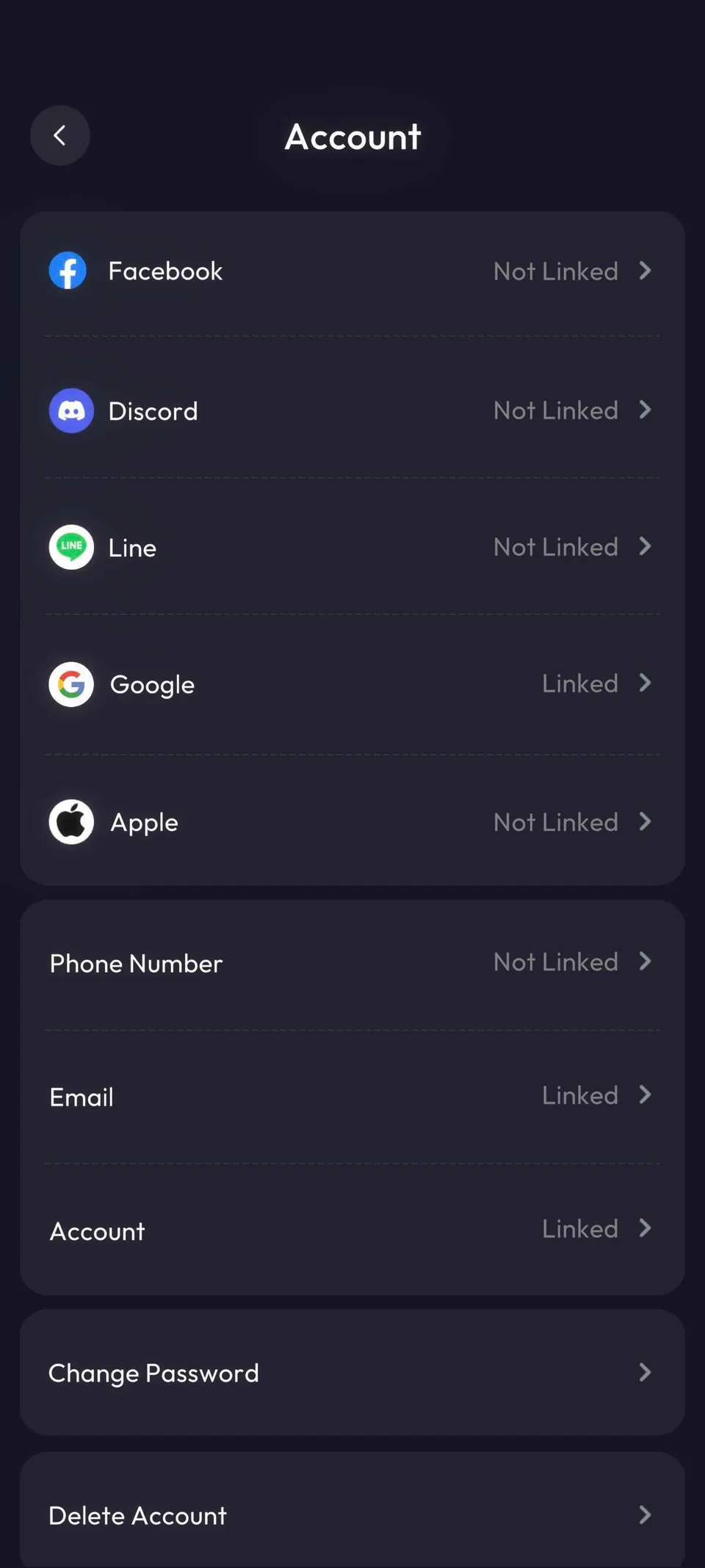
To check email, look at the status on the Email row.
If the option you want shows Not Linked, use the corresponding entry to manage that link. Then check whether the status changes to Linked, which indicates that linking is complete.
Confirm Is Gray: Review the Form
If Confirm is gray, details are incomplete or do not meet the rules. For username registration, check the name, password, and password confirmation; for email registration, check the address, code received, and password. Also check the password rule stated before the steps.
You Want to Use the Same Account on Another Device
Use the same sign-in method to access the account on different devices. According to the WPTHOME FAQ, this is the condition for syncing account data between devices.
Switching devices too often within a short period may trigger a security check. For this reason, the product recommends maintaining stable access on the devices you normally use.
You Need to Change Your Account Password
The Change Password option in Account is the entry for changing your sign-in password.

 3 days ago