Poker App: How to Find Tables in WPT HOME

The WPT HOME table list shows the game type, blinds or ante, and player count for each visible game. Use these details to find a table that matches what you are looking for. To begin, log in to your account.
How to Browse Tables in the Poker App
1. Open Table
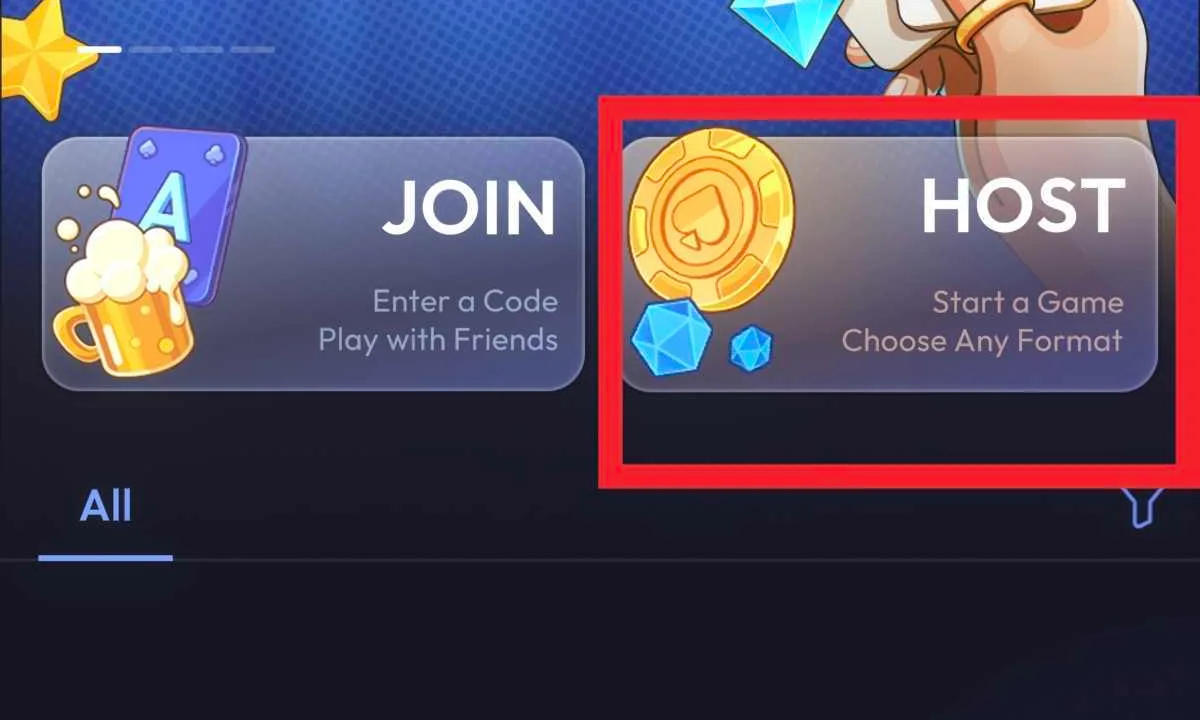
Select Table in the bottom navigation. The table list is directly below the JOIN / HOST controls.
2. Choose a Category and Use the Filter if Needed
Choose a category, such as All or Public, to browse the games shown under that selection. To refine the list, use the filter button to the right of the categories and adjust the criteria available in the interface.

3. Check Game Type, Blinds and Player Count
Read the game name and the game type shown on the card. Labels in the upper-right corner include PLO4, SQUID, AOF, and SD 6+. Also check the blinds or ante, duration, and player count to compare the options and choose a table that suits what you are looking for.
On the right, the indicator follows the order seated players / maximum capacity. For example, 0/9 means zero players are seated and the table holds up to nine people.

4. If No Tables Appear, Review the Category and Filter
The message “No games yet. Host one? Host a game and play with friends.” means there are no games to display in the current list. Check the selected category and applied filters, adjust the available criteria, and browse the list again.
 3 days ago